Format Fidelity: The Complete ODT to PDF Conversion Guide
LibreOffice and OpenOffice documents don't open reliably on every machine. Learn what actually happens during ODT to PDF conversion and why layout sometimes shifts.
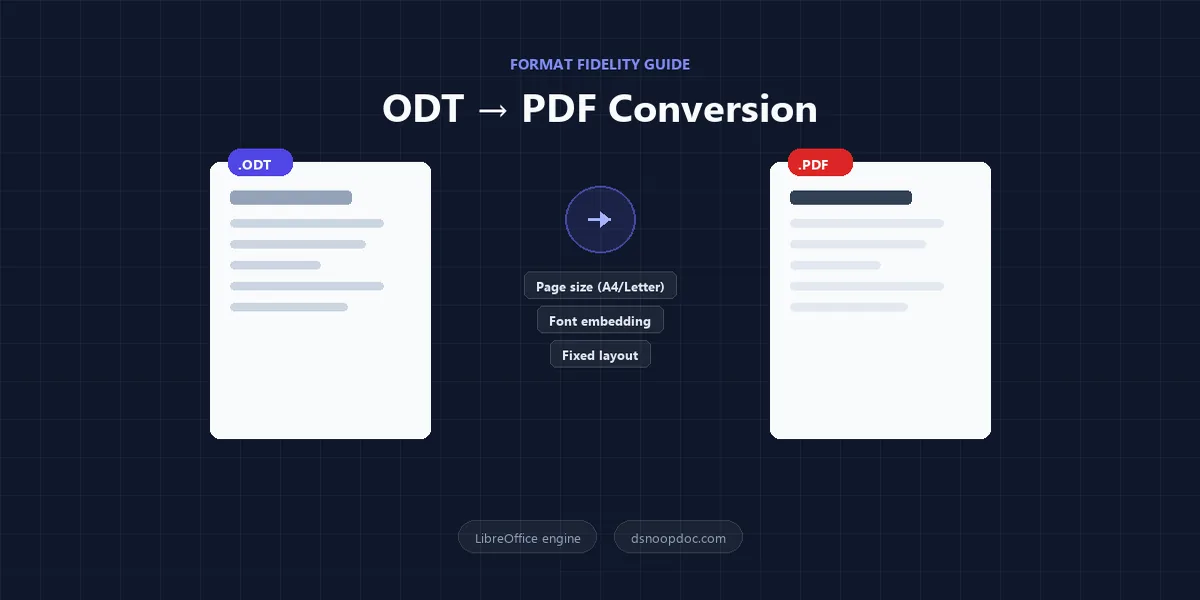
ODT (OpenDocument Text) is the native file format of LibreOffice Writer and OpenOffice.org Writer, standardized as ISO/IEC 26300. Like DOCX, it's a ZIP archive of XML files describing content, styles, and layout — but it's a different standard with its own rendering rules, which is exactly why an ODT file can look slightly different when opened in a non-LibreOffice/OpenOffice app, and why converting it to PDF is the reliable way to share it with anyone regardless of what word processor they have installed.
Why ODT Needs Converting More Often Than DOCX
Most business software defaults to reading DOCX; far fewer default to ODT. If you draft in LibreOffice Writer and send the raw .odt file, a recipient without LibreOffice or a compatible OpenDocument reader may not be able to open it at all. Converting to PDF sidesteps the format-support question entirely — PDF renders identically in any PDF viewer, which is nearly universal.
What Actually Happens During Conversion
A proper ODT-to-PDF conversion doesn't just take a screenshot of the document — it re-renders the OpenDocument XML through a layout engine (LibreOffice's own engine is the reference implementation, and most server-side converters, including the one behind this site's ODT to PDF tool, run headless LibreOffice to do exactly this) and writes out fixed-position content streams and embedded fonts, the same fundamental process covered in our Word to PDF conversion guide — the mechanics are shared across office formats, only the source XML schema differs.
Where ODT Conversions Commonly Shift
- Page size defaults differ by region and app. LibreOffice installs commonly default new documents to A4, while many US-based tools default to Letter. If the original author didn't explicitly set page size, the exported PDF can come out a different size than the recipient expects — check Format → Page Style in LibreOffice before exporting if this matters.
- Font substitution is more likely than with DOCX. ODT files reference fonts by name but, like DOCX, don't always embed them in the source document itself. If the font used in the original isn't installed on whatever system performs the conversion, the output substitutes a metrically similar font — spacing and line breaks can shift as a result. Stick to widely available fonts (or confirm the exact font is installed wherever the conversion runs) if pixel-perfect fidelity matters.
- Embedded spreadsheets and charts flatten to static images. If a LibreOffice Calc chart or table object was pasted into the Writer document as an embedded OLE object, PDF export renders it as a fixed image — this is expected behavior, not a conversion bug, since PDF has no concept of a live embedded spreadsheet. If you need the underlying numbers editable, keep the original .odt (or the source .ods) as the working copy.
- Header/footer field codes render their current value, not a live field. Page-number and date fields work correctly in the output, but they're baked in at export time — a PDF made today won't update itself tomorrow the way the live ODT would.
Best Practices
- Set page size explicitly before converting if the document needs to match a specific standard (Letter for US recipients, A4 elsewhere) rather than relying on LibreOffice's regional default.
- Use common, widely licensed fonts for anything you'll convert — the safest choices are fonts installed by default on most systems, minimizing substitution risk.
- Review embedded charts/tables after conversion. Confirm they flattened cleanly and didn't clip at a page boundary — complex embedded objects near a page break are the most likely spot for layout surprises.
- Keep the source .odt as your editable copy. Treat the PDF as the distribution format, not the working file — once converted, layout is fixed and content isn't easily editable, the same rule covered in our ultimate guide to PDF editing.
- Compress before sending if the source had large pasted images. ODT files with high-resolution screenshots or photos carry that weight straight into the PDF — see our PDF compression guide if the converted file is too large to email.
Common Tasks
Sending a LibreOffice-drafted resume or cover letter: convert with our ODT to PDF tool before submitting anywhere — most applicant tracking systems and recruiters expect PDF, not ODT, and a raw .odt file may not open at all on their end.
Archiving OpenDocument reports for long-term storage: PDF's fixed layout makes it a safer long-term archive format than ODT if the document needs to remain readable regardless of which office suite (or version of it) is available years later.
Sharing a document with Microsoft Word users: converting to PDF avoids the format-compatibility question entirely — recipients don't need Word, LibreOffice, or any specific app, just a PDF viewer.
Troubleshooting
The PDF came out as A4 but I needed Letter (or vice versa). This is a page-size setting carried over from the source document, not a conversion error — reopen the .odt, set the page size explicitly under Format → Page Style, and re-export.
A chart or table in the PDF looks like a flat image I can't edit or select text in. Expected — embedded OLE objects (spreadsheets, charts) flatten to static images during PDF export. Edit the numbers in the source .odt/.ods and re-convert if the data needs to change.
Text wraps differently than it did in LibreOffice. Almost always a font substitution — the original used a font unavailable to the converter, which fell back to a similar-width alternative. Check which fonts actually embedded in the output.
Bottom Line
ODT and PDF solve different problems: ODT is for editing in an OpenDocument-compatible app, PDF is for sharing something that looks the same everywhere. The formatting shifts people run into — page size, font substitution, flattened embedded objects — all trace back to settings in the source document, not a broken converter. Set page size and fonts deliberately before exporting, and the result will match what you built in LibreOffice.