Paperless Approvals: Mastering Digital Signatures on PDFs
Understand the critical structural differences between simple image overlays and secure, legally binding digital signature encryptions.
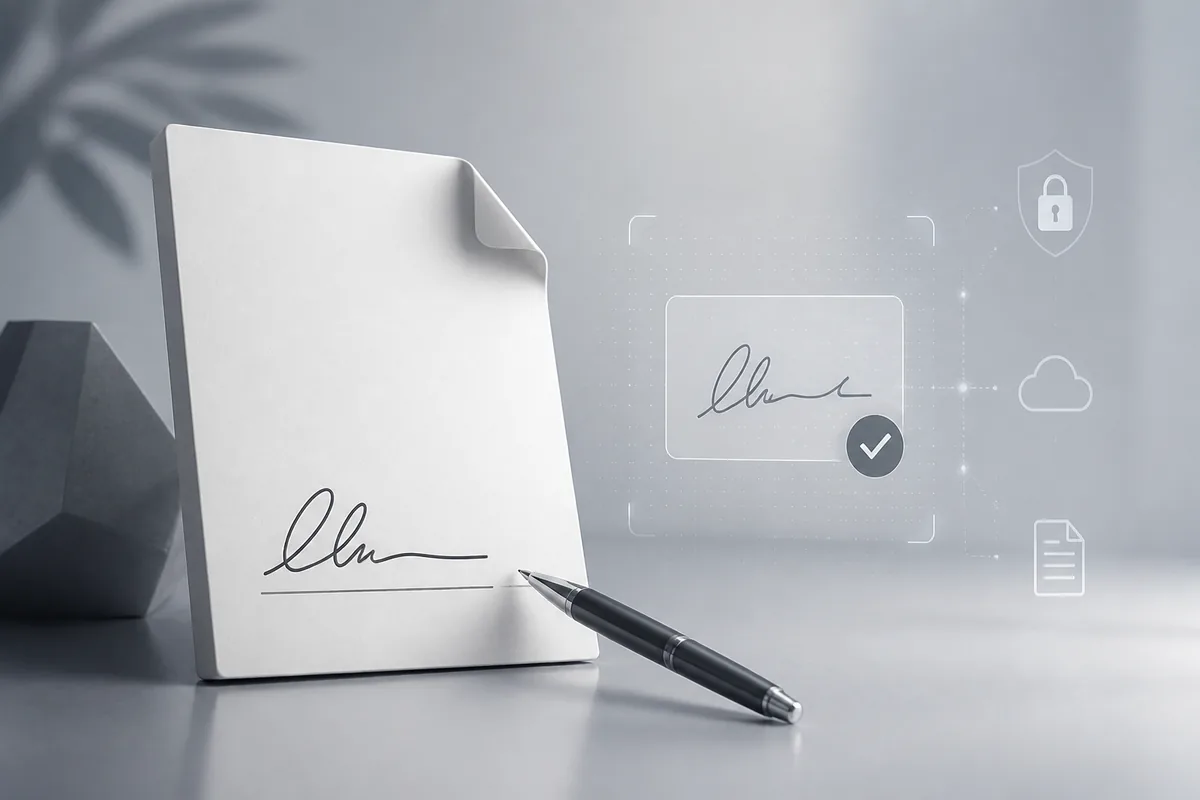
A lot of people call any signature on a PDF a 'digital signature,' but there's a real, important difference between dropping an image of your handwriting onto a page and applying a cryptographic digital signature. One is a picture. The other mathematically proves who signed and that nothing has changed since.
Electronic Signature vs. Digital Signature
An electronic signature is any indication of intent to sign attached to a document — a typed name, a drawn signature, an image of a wet-ink signature pasted onto a page. It's legally recognized in many contexts (the US ESIGN Act and UETA, for example), but on its own it's just visual content in the PDF, no different from any other image. Anyone with basic editing tools can copy that image and paste it onto a different document.
A digital signature is a specific cryptographic mechanism, standardized as part of the PDF spec, that uses public-key cryptography to bind a signer's identity to the exact bytes of the document at the moment of signing:
- Key pair: the signer holds a private key and has a certificate binding a public key to their identity, usually issued by a certificate authority.
- Hash and sign: the signing process computes a cryptographic hash (a fingerprint) of the document's content and encrypts that hash with the signer's private key.
- Verification: anyone with the signer's public key can recompute the hash and check it against the signature. If even one byte of the signed content changed afterward, the hashes won't match and the signature shows as invalid.
- Timestamping: many signing workflows also bind a trusted timestamp to the signature, so you can prove *when* it was signed, not just that it was.
This is why a digital signature can detect tampering and an electronic (image) signature can't — the cryptography is mathematically tied to the document content, not just visually placed on top of it.
When Each Is Appropriate
A typed or drawn electronic signature is fine for low-stakes agreements where the parties trust each other and there's a paper trail elsewhere (an internal approval, an informal acknowledgment). For contracts, financial documents, or anything where you need to prove authenticity and detect tampering after the fact, use a real digital signature with a certificate-backed key.
Best Practices
- Use certificate-backed signing for anything with real stakes. A picture of a signature proves nothing about who actually applied it.
- Flatten the document after signing. This locks the signed content so later edits are visibly detectable rather than silently possible — prepare any interactive fields beforehand using our PDF forms guide.
- Check the signature's validity indicator, not just its presence. A viewer showing 'signature valid' has actually recomputed the hash; a visible signature image tells you nothing on its own.
- Use a trusted timestamp when timing matters — e.g. for anything with a deadline or effective date tied to the signing moment.
- Keep signed files separate from drafts. Once something is signed, treat it as final and versioned, not a working copy.
Common Tasks
Signing a contract with a certificate-backed signature: use our sign PDF tool to apply a cryptographic signature bound to the document content, not just a placed image.
Collecting signatures from multiple parties: route the document through each signer in sequence — our e-sign PDF tool supports multi-party signing workflows.
Troubleshooting
Signature shows as 'unverified' or 'unknown validity' — the viewer doesn't trust the certificate chain behind the signature, often because it's self-signed rather than issued by a recognized certificate authority. This doesn't necessarily mean the signature is fraudulent, but it does mean the viewer can't automatically vouch for the signer's identity.
Viewer reports the document was modified after signing — this is the tamper-detection working as intended. Something changed after the signature was applied; treat the document as no longer authoritative and get it re-signed.
Signature image looks distorted after conversion — if you're converting a signed document to another format, see our guide on converting Word to PDF for how format conversion can affect layout, though note that converting a digitally signed PDF to another format will invalidate the signature entirely, since the underlying bytes change.
Bottom Line
If you need to prove who signed something and that it hasn't been altered since, you need a real cryptographic digital signature, not an image of one. The distinction isn't pedantic — it's the entire reason digital signatures exist.