Asset Extraction: Extracting Images vs. Converting PDF to JPG
Extracting images and converting pages to JPG sound like the same thing, but one pulls the original photo out of the file untouched and the other draws a brand-new picture of the whole page. Here's the difference and when to use each.
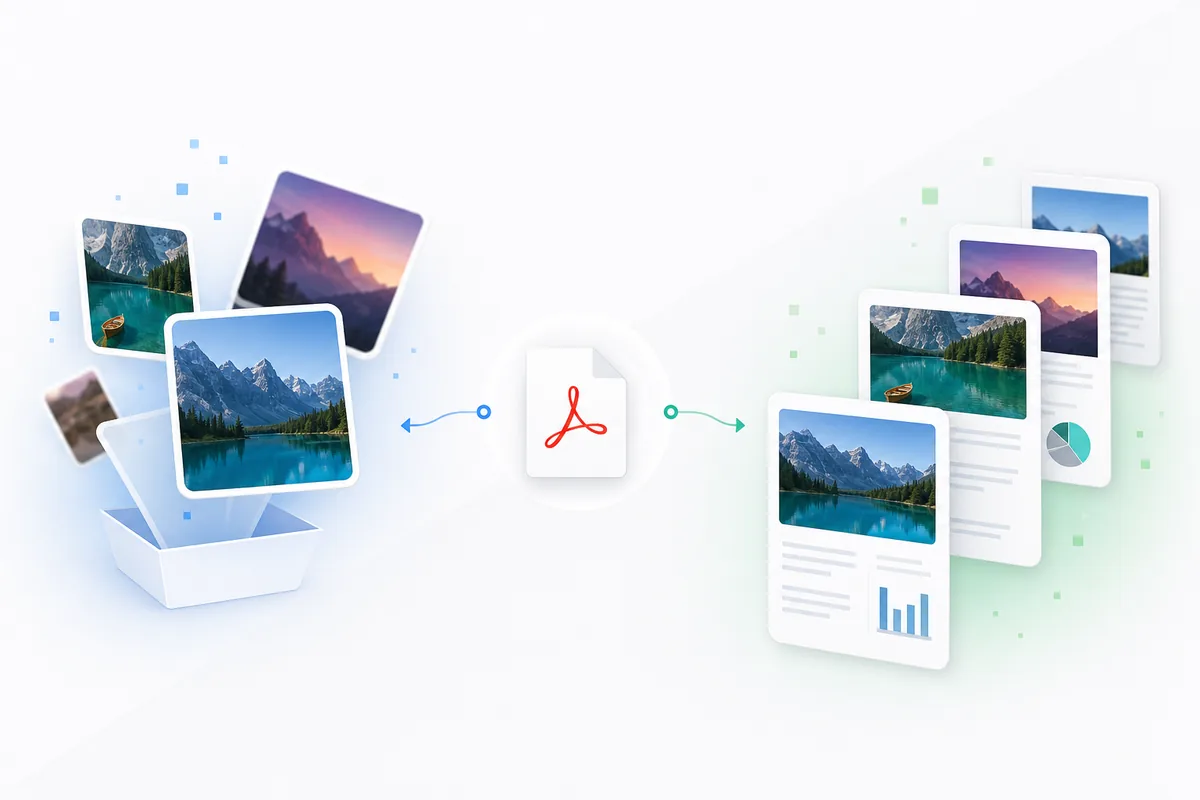
"Extract images from PDF" and "convert PDF to JPG" get confused constantly because they both end with you holding image files. But they do fundamentally different things to the source document, and picking the wrong one is why people end up with blurry text, missing content, or unnecessarily huge output.
What each tool actually does
PDF to JPG rasterizes the page. It takes everything on a page — text, vector graphics, embedded photos, background fills, all of it — and renders it as a single flat picture, the same way a screenshot captures whatever's on screen. The output is a new image of the page as a whole; none of the original elements exist separately in the result anymore. Once you're done, text is no longer text — it's just pixels shaped like text.
Extract Images pulls the embedded photo files out of the PDF unmodified. A PDF that includes a photograph doesn't draw that photograph pixel-by-pixel with vector instructions — it embeds the actual image data (typically JPEG or a similar compressed format) as an object in the file and just references it for display. Extracting images finds those embedded objects and pulls them out as-is, at their original resolution and compression, without touching the surrounding text or layout.
Why this distinction actually matters
- Quality: An extracted image is the original file the document's author embedded — same resolution, same compression artifacts (or lack of them) as when it went in. A rasterized page is a *re-render* of that image at whatever DPI you chose, which is almost always lower fidelity than the source and can introduce new compression artifacts.
- What you get back: Rasterizing a page with three paragraphs and one photo gives you one JPG showing all of it, text included. Extracting images from that same page gives you just the photo, as a separate file — no text, no layout.
- File count: A single page might contain zero, one, or a dozen embedded images (icons, logos, and photos are often all separate objects). Extraction can return many files from one page; rasterizing always returns exactly one image per page.
When to use which
Use PDF to JPG when you want a visual snapshot of a page as it looks — sharing a page layout on social media, generating a thumbnail, or archiving what a document visually looked like at a point in time.
Use Extract Images when you actually need the original photo or graphic back — pulling a logo out of a signed contract, recovering a product photo that was embedded in a catalog PDF, or getting scanned photos back out of a document at their native quality instead of a re-rendered copy.
A note on resolution, if you're rasterizing
If you do need PDF-to-JPG output, 150 DPI is generally enough for on-screen sharing; use 300 DPI if the output needs to look sharp when printed or zoomed in, since text edges get visibly soft below that.
Try it
Convert PDF to JPG to render full pages as images, or extract images from PDF to pull the original embedded photos out untouched. If you're prepping a document before either step, our guide to PDF editing covers the basics of what's actually inside a PDF page.
Conclusion
The short version: rasterizing makes a new picture of the whole page, extraction recovers the original image files already inside it. Once you know which one you actually need, the right tool is obvious.