Consolidating Files: How to Merge PDF Files Into a Single Volume
Stop sending fragmented attachments to your clients. Learn how combination scripts merge separate documents while maintaining structural fonts.
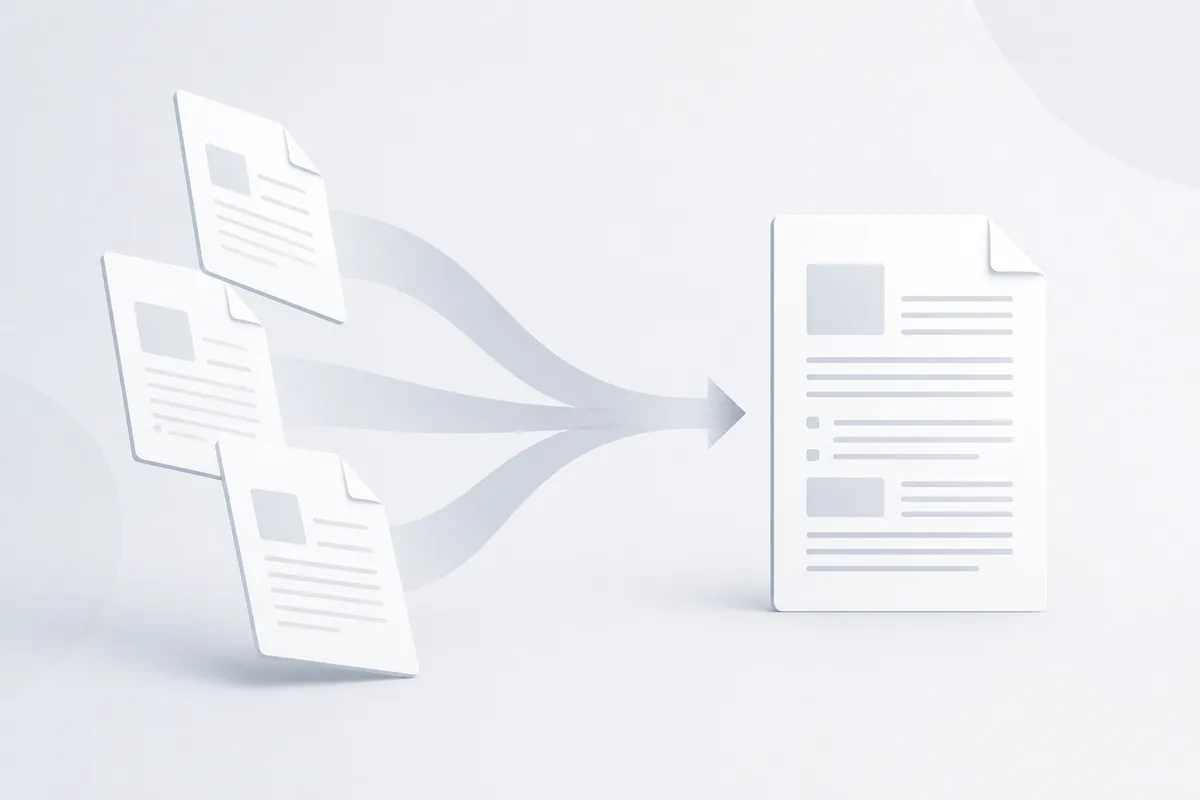
Sending five separate attachments for a single transaction, a proposal, terms, a technical drawing, and a sign-off page, creates work for the person on the other end: they have to open each one, keep track of which is which, and hope none go missing in a crowded inbox. Merging them into one file with a sensible page order removes that friction entirely.
What Actually Happens When You Merge PDFs
Merging isn't just concatenating bytes from one file onto the end of another; each source PDF has its own independent set of objects, and a merge tool has to reconcile them:
- Font tables: each source file embeds or references its own fonts. A merge tool needs to either keep separate font tables per source or, better, deduplicate identical fonts so the combined file doesn't carry multiple copies of the same typeface.
- Page geometry: source files can differ in page size and orientation (letter vs. A4, portrait vs. landscape). A good merge preserves each page's original dimensions rather than forcing everything into one size.
- Internal links and bookmarks: hyperlinks and outline entries (the sidebar navigation tree) point to specific pages by internal reference. Merging has to remap those references so links still land on the right page in the combined file.
- Form field names: if any source files contain AcroForm fields, duplicate field names across files can cause their values to collide in the merged output — see the note on this below.
Best Practices
- Check page orientation before merging. Mixing landscape and portrait pages is fine — a properly built merge tool keeps each page's own dimensions — but verify the result rather than assuming.
- Review page order visually before finalizing. Catch blank pages, duplicates, or out-of-order sections before you commit to a final file. Our split PDF guide covers isolating and reordering sections if you need to fix a source file first.
- Watch file size on image-heavy merges. Combining several files with high-resolution images adds up fast; see our PDF compression guide if the result is too large to email.
- Verify bookmarks and internal links after merging. Click through a few to confirm they land on the correct page in the new combined file.
- Keep the sources. Save the merged output as a new file rather than overwriting any of the originals, so you can re-merge if something needs to change.
Merging PDFs with Forms
If any of the files you're merging contain fillable form fields, check for duplicate field names before combining them. Two source PDFs generated from the same template often reuse identical field names (e.g. both have a field literally named 'Name'), and once merged, filling in one can overwrite the other because AcroForm fields are matched by name across the whole document, not by page. Rename fields in one source file first if this applies to you.
Common Tasks
Combining a proposal packet: drag your source files into our merge PDF tool, arrange them in the right order, and download the combined file — fonts and page geometry are handled automatically.
Combining mixed orientation pages: a properly built merge preserves each page's original orientation, so a landscape spreadsheet export and a portrait cover letter can sit in the same file without either one being stretched or cropped.
Troubleshooting
Fonts look different after merging — this usually means two source files used the same font name for genuinely different font programs (common with generic names like 'Arial' from different systems). Re-check the source files' embedded fonts if this happens.
Bookmarks disappeared after merging — some merge tools drop the outline/bookmark tree entirely rather than remapping it. Use a tool that explicitly preserves navigation structure if bookmarks matter to your workflow.
Merged file is much larger than the sum of its parts — duplicate, un-deduplicated font embeds are the usual cause. Run the result through a compression pass to reclaim the space.
Bottom Line
A clean merge isn't just stacking pages — it's reconciling fonts, geometry, and internal references across files that were never designed to know about each other. Get that right and the combined file reads as if it were built as one document from the start.