Transaction Closings: How to Merge PDFs Into Single Closing Bundles
Merging a deed, disclosures, and a signature page into one closing bundle is routine — until it breaks an existing digital signature. Here's what to know before you combine transaction documents.
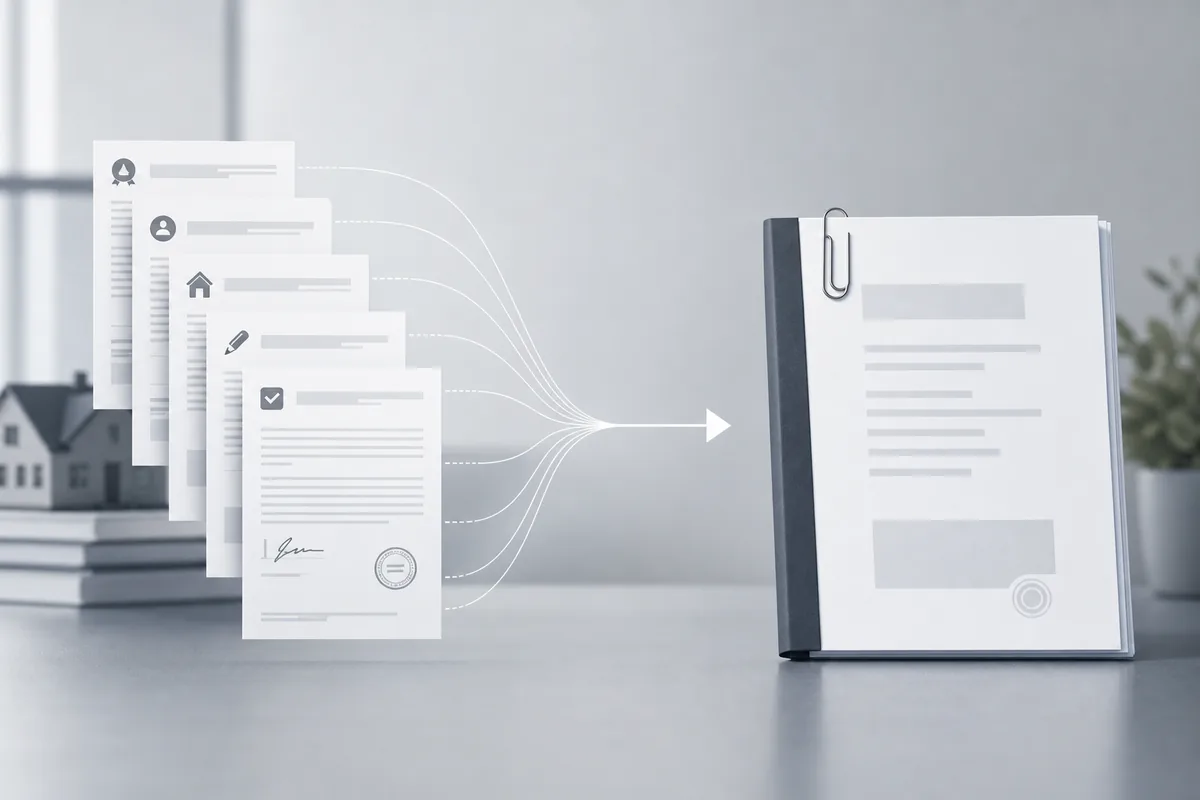
Real estate closings, contract execution packages, and procurement audits all involve the same basic task: several separate PDFs — a deed or agreement, disclosure forms, exhibits, a signature page — need to become one ordered file before they go to a client, a title company, or an auditor. Merging them is straightforward in principle, but a few things about how PDFs work can trip you up if you don't know to check for them.
The one thing that actually breaks: digital signatures
If any of the source documents were digitally signed (a cryptographic signature, not just a scanned or drawn signature image), merging that document into a new file invalidates the signature. A digital signature works by hashing the exact byte content of the signed PDF at the moment of signing; combining it into a different file changes those bytes, so the signature can no longer verify against the original. This is expected behavior, not a bug in any particular tool — it's inherent to how PDF signing works. The practical fix is ordering: collect and merge everything else first, then apply signatures last on the final combined document, or keep the digitally signed component as its own file if it must stay independently verifiable. A signature drawn or typed into a form field (an electronic signature, not a cryptographic one) doesn't have this problem — it's just page content and survives merging fine.
Mixed page sizes
Closing packages often mix standard letter-size contract pages with legal-size exhibits or landscape-oriented diagrams and spreadsheets. A merge tool should preserve each page's original size and orientation rather than forcing every page into one uniform size — reflowing a wide table onto a narrower page crops it. Check the merged output for exactly this before sending it out.
Ordering and bookmarks
For anything an auditor or counterparty needs to navigate quickly, page order matters more than most people plan for up front. Arrange source files (or reorder pages within the merged result) so the summary or cover page comes first and supporting exhibits follow in the order they're referenced. If your PDF viewer supports it, adding bookmarks to a long closing bundle makes it much easier for a reviewer to jump straight to a specific exhibit instead of scrolling through fifty pages.
Keeping file size manageable
Scanned exhibits are usually the biggest contributor to bloated closing packages. 150-200 DPI is enough resolution to keep scanned text and numbers legible while keeping file size reasonable for email; going much higher mostly just adds weight without adding legibility for text pages.
Putting a package together
Use our merge PDF tool to combine the components — see how to merge PDF files for the general workflow. If you need to pull a specific exhibit or page range out of a larger source file before combining it into the package, use split PDF first. And if the final bundle needs a signature, sign it after merging using eSign PDF so the signature applies to the actual final document, not a component that gets altered afterward.
Conclusion
Merging is the easy part — the details that matter are keeping digitally signed components independent (or signing last), preserving page sizes instead of forcing uniformity, and ordering the result so a reviewer can actually navigate it. Get those right and a closing bundle holds up the way it's supposed to.