Accuracy Check: Measuring PDF to Word Conversion Quality
Garbled tables and run-together words after a PDF-to-Word conversion aren't random. Here's what actually causes them, and how to check a conversion before you trust it.
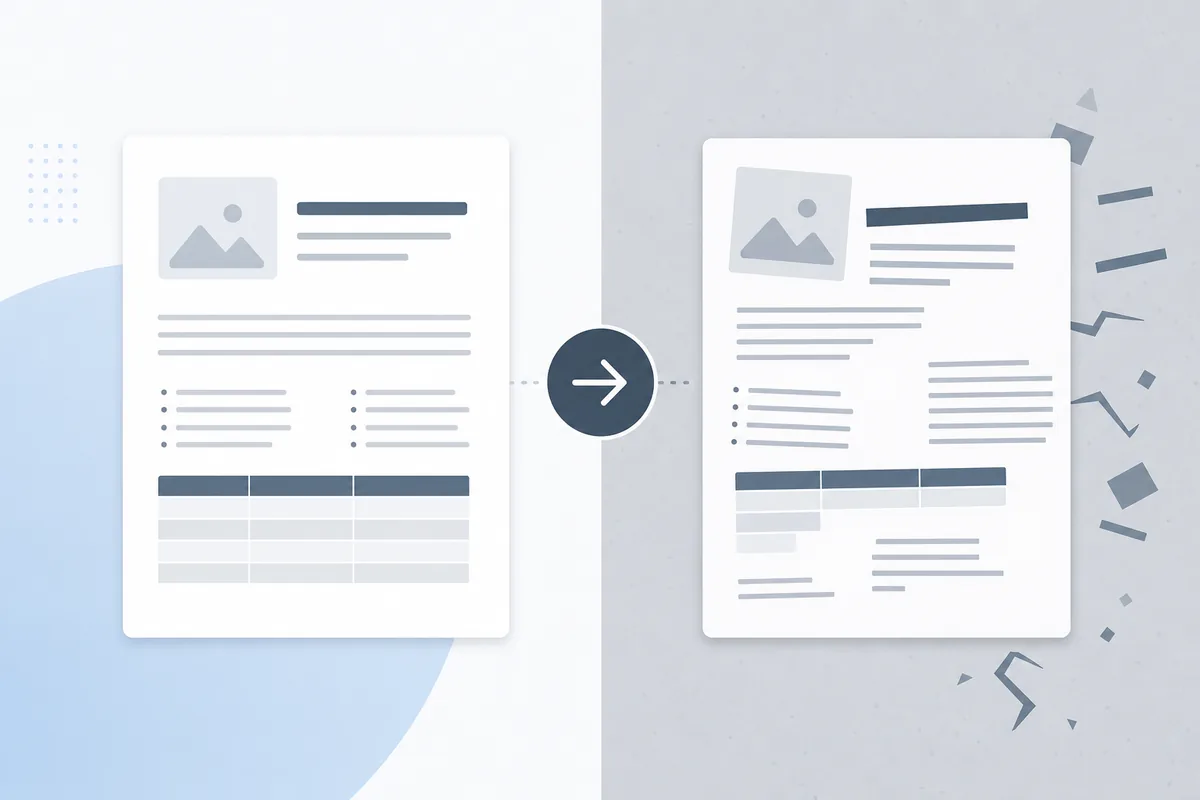
PDF-to-Word converters have a bad reputation, and it's earned: paste a converted file into an email and you'll often find run-together words, tables that turned into loose columns of text, and paragraphs broken mid-sentence. None of that is random. It comes down to how a PDF stores text in the first place, and how much work the converter has to do to reverse it.
Why PDFs are hard to convert back to editable text
A PDF page isn't a paragraph of text the way a Word document is. It's a sequence of low-level drawing instructions in a content stream: "draw this glyph at coordinate (x, y) using font F1," repeated for every character on the page. There's no inherent concept of a word, a sentence, or a table cell — those are visual patterns a human reader infers from position. A converter has to reconstruct that structure by clustering glyphs that sit close together horizontally into words, clustering lines that share margins into paragraphs, and detecting rows/columns of aligned text as table cells. Get the clustering wrong and you get exactly the symptoms above.
What actually causes conversion quality problems
- Missing glyph width/spacing data. If a font's character-width table isn't read correctly, the converter can't tell where one word ends and the next begins, and text runs together.
- No embedded font, and the wrong substitute. PDFs can embed the exact font used, embed only the subset of glyphs actually used, or reference a system font by name. If a font isn't embedded and the converter substitutes a different font with different character widths, line breaks and page layout can shift even though the text itself is correct.
- Tables without real cell borders. Many PDFs "draw" tables as text positioned at fixed x-coordinates with thin lines behind them, not as a structured grid. A converter has to infer the rows and columns from that positioning — get the tolerance wrong and a table becomes a loose list of numbers.
- Scanned pages with no text layer at all. If the PDF is a photograph of a page (common with older scanned contracts), there's no text to extract — the converter needs OCR first, or it will output nothing or garbage.
How to evaluate whether a conversion actually worked
- Turn on formatting marks (¶) in your word processor and check that paragraphs break where they should, not at every line wrap.
- Spot-check a table: are financial figures still in separate columns, or did they collapse into one run of text?
- Look for word-run-together errors, especially around numbers and unusual character combinations — a quick find for double spaces or missing spaces around punctuation catches most of them.
- If the source was a scan, confirm text is actually selectable, not just visually present.
Getting a clean conversion
Use our PDF to Word converter — see the walkthrough in how to convert PDF to Word if you want the full steps. If your source document is a scan rather than a text-based PDF, run it through OCR first so there's an actual text layer to convert. And if you're assembling multiple converted files into one package afterward, see merging PDFs for closing bundles for how to keep that process clean too.
Conclusion
Conversion quality isn't about which tool has a fancier interface — it's about how well the engine reconstructs word boundaries, font metrics, and table structure from raw drawing instructions. Knowing what actually breaks (missing width data, font substitution, table-cell inference, missing OCR) makes it much faster to spot a bad conversion and fix the actual cause instead of manually retyping the whole page.