Cloud Generation: Converting Word to PDF Without Microsoft Office
Stuck on a machine without Office installed? Learn how browser-based tools convert Word documents to PDF without needing Microsoft's software at all.
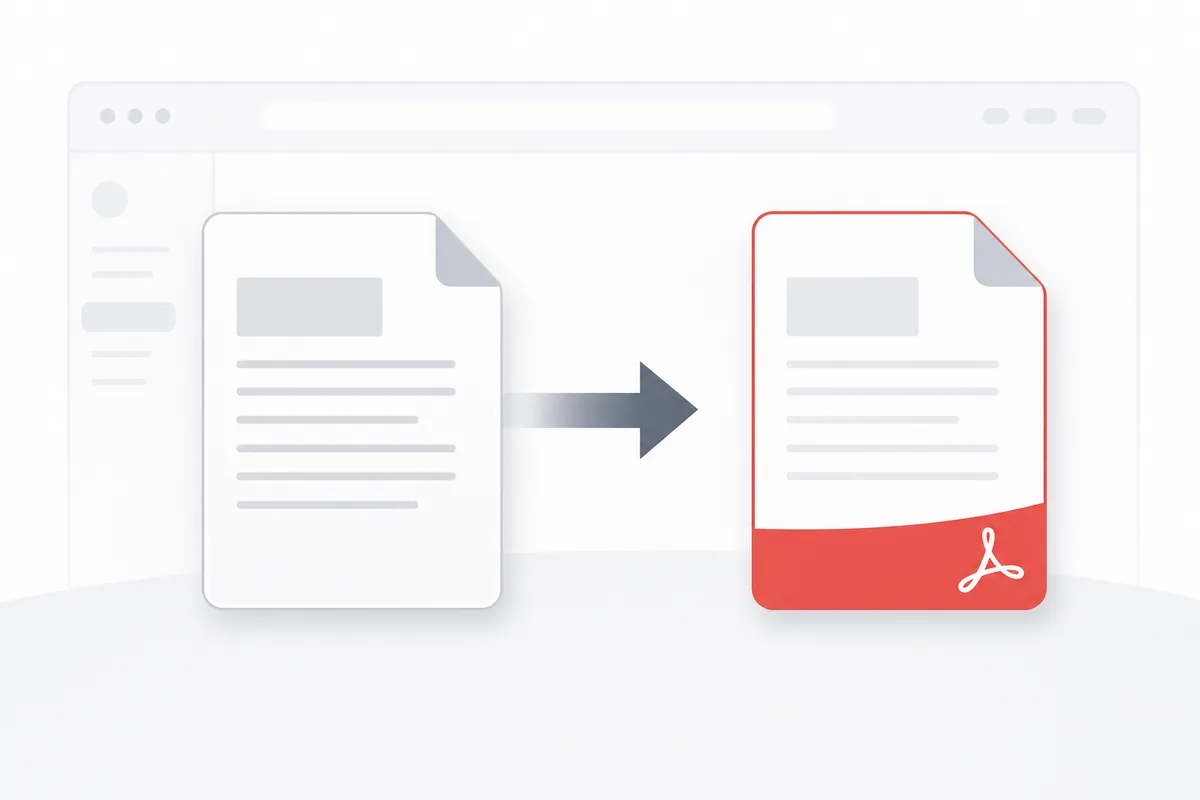
Not having Microsoft Word installed — because you're on Linux, a shared machine, a Chromebook, or just don't want to pay for a license — doesn't have to block you from turning a .docx file into a properly formatted PDF. The conversion itself is really just "parse the document's XML structure, compute the layout, embed fonts, and write fixed pages," so it doesn't strictly need Word at all; several other tools implement that same pipeline.
How Browser-Based Conversion Works
A .docx file is itself just a ZIP archive containing XML files that describe content, styles, and layout rules. A conversion tool reads that XML directly — it doesn't need Word's rendering engine, it needs a compatible one. This is the same approach LibreOffice and most cloud conversion services take: parse the Office Open XML format, apply the styling rules, and render to a fixed-layout PDF.
Best Practices
Stick to standard fonts in the source document
If the .docx uses a font that isn't widely available, a non-Word renderer may substitute something else, which can shift line breaks slightly. Standard fonts (system fonts, or fonts explicitly embedded in the .docx) convert most reliably.
Keep formatting relatively simple
Complex nested tables, unusual margin overrides, or heavily customized styles are more likely to render slightly differently across renderers than in Word itself — not because the tool is bad, but because Office Open XML has enough edge cases that no two implementations parse 100% identically.
Review the output before relying on it
For anything formatting-sensitive (contracts, resumes), open the resulting PDF and check page breaks and tables specifically — these are the two things most likely to shift.
Clear tracked changes and comments before converting
Same as any Word-to-PDF conversion — see our full conversion guide for the general best practices that apply regardless of which tool does the rendering.
Common Tasks
Converting a document on a machine with no office suite
- Upload the .docx to a browser-based conversion tool — no install required, since the parsing and rendering happen server-side or in-browser.
- Download the resulting PDF and check page breaks and tables against what you expect from the source.
- If it needs to be signed, proceed to a signing step — see our digital signatures guide.
Converting on a phone or tablet
Browser-based tools work the same way on mobile — useful for finalizing a document when you're away from a full desktop setup entirely.
Troubleshooting
Headings look different from how they appeared in Word. Usually a font substitution issue — the heading style referenced a font that wasn't available to the renderer. Check which font actually got embedded in the output.
Hyperlinks stop working after conversion. A well-built converter preserves them as PDF link annotations; if they consistently drop, that specific tool isn't carrying link data through its rendering pipeline — worth trying an alternative.
Conversion takes unusually long. Large embedded images in the source .docx are the most common cause — compressing images in the source document before converting speeds this up significantly.
Conclusion
Word-to-PDF conversion is a well-defined, standard operation — parse the Office Open XML, apply styles, render fixed pages — that doesn't actually require Microsoft's own software to do correctly. Stick to standard fonts and reasonably simple formatting, review the output for page breaks and tables, and a browser-based tool will get you a reliable result from any device.